

QR code stickers: design and scan-test checklist
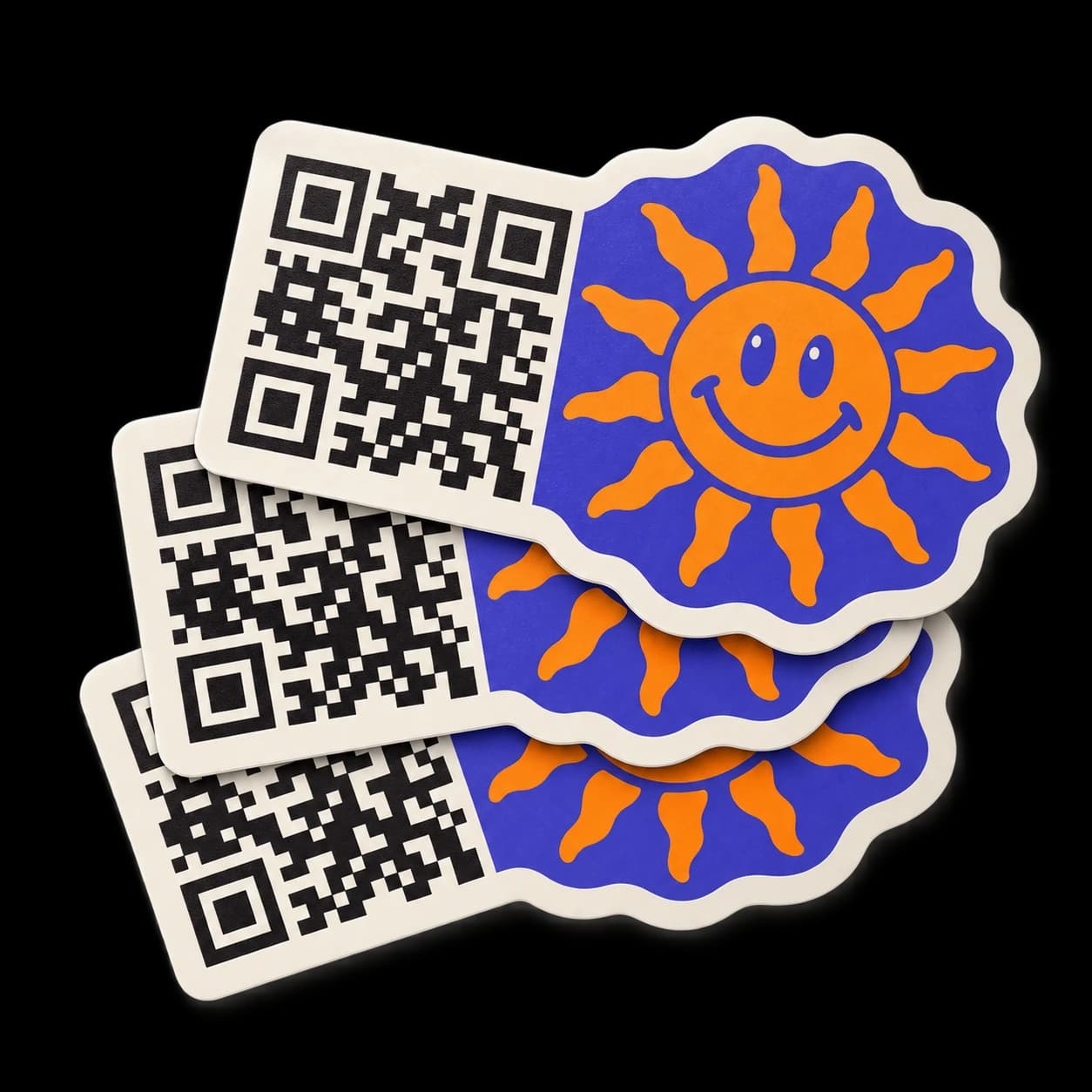
A QR code sticker has two jobs: get noticed and open the right destination. A polished layout is only useful if someone can scan it where you actually put it. Before ordering a batch for packaging, a counter, or an event, check the link, the printed layout, and the conditions around it.
Start with custom QR code stickers, which let you upload an existing code or generate one from a website link and pair it with your artwork. Use this checklist before approving the proof.
Choose one useful destination
Decide what happens after the scan. A restaurant menu, booking page, product instructions, and social profile need different destinations. Send people to the relevant page rather than asking them to find it from your homepage.
Open the link on a phone while signed out. Check that it loads, that any buttons work, and that it does not require an account you did not intend. If the sticker will be public, do not encode a private document link or a customer-specific URL.
Give the action a plain label outside the code: “View the menu” or “Book an appointment” explains more than “Scan me.” Keep the words accurate to the page people will reach.
Keep the quiet zone clear
The blank margin around a QR code is part of its layout. DENSO WAVE, the creator of QR Code, specifies a four-module quiet zone on every side of a standard QR symbol. A module is one of the small squares in the code; the requirement is not a fixed number of inches.
Do not crop that margin to make the design fit. Keep text, a logo, decorative lines, and the sticker’s cut edge outside it. A border around the whole sticker does not replace a clear margin immediately around the code.
Tell the design team which part is the QR code and which part is your branding. Putting a logo alongside the code is an easy layout to review. If you want artwork inside the code, request it explicitly and test the resulting design rather than assuming it will scan.
Use contrast and size you can test
Start with a dark code on a plain light background. Put brand colors in the surrounding artwork if using them inside the code makes its small squares harder to distinguish. Avoid a busy photograph behind the pattern.
There is no single sticker size that guarantees a scan on every phone, at every distance, in every setting. The code’s detail, finished print, lighting, and intended placement all matter. A design containing both a code and a logo also needs space for each.
Use our sticker size guide to measure the available area. Check the code itself at the finished size, not just the overall sticker width. Keep the code square when resizing, and supply a sharp original file rather than a screenshot from a messaging app. The artwork preparation guide covers file quality and proof checks.
Test where the sticker will be used
A successful scan from a large image on a bright monitor is a useful first check, but it does not test a small sticker on a bottle or a window. Make an actual-size printout, verify its dimensions with a ruler, and place it where you intend to apply the sticker.
- Scan with more than one phone, including the camera app people are likely to use.
- Try the intended viewing distance and ordinary lighting, without zooming in.
- Check the layout on the surface, including any curve, reflection, or obstruction.
- Open the destination after scanning and complete its main action.
A paper mockup helps check layout; it does not reproduce the final material or finish. If the application is demanding, ask the team about testing a physical sample before committing to a larger run. Our matte and glossy sticker comparison explains the finish choices. Check either option against the lighting you expect.
Review the proof and keep the link working
- Confirm the correct URL and that the code opens it.
- Check the quiet zone, dimensions, cut line, and artwork version.
- Read the action label and any small supporting text.
- Request changes before approval if the scan or layout is uncertain.
The printed pattern cannot be edited after production. If it points directly to a URL, that encoded URL remains the same. A redirect or dynamic QR service may let you change the destination, but that depends on the service and your control of it. Confirm any renewal requirements before using one.
Keep a record of the destination and periodically scan a sticker in use. When you reorder, test the link again even if the artwork has not changed. Build your QR sticker order once the destination, layout, and scan check are ready.