

Shopify orders to custom logo stickers: complete 2026 workflow
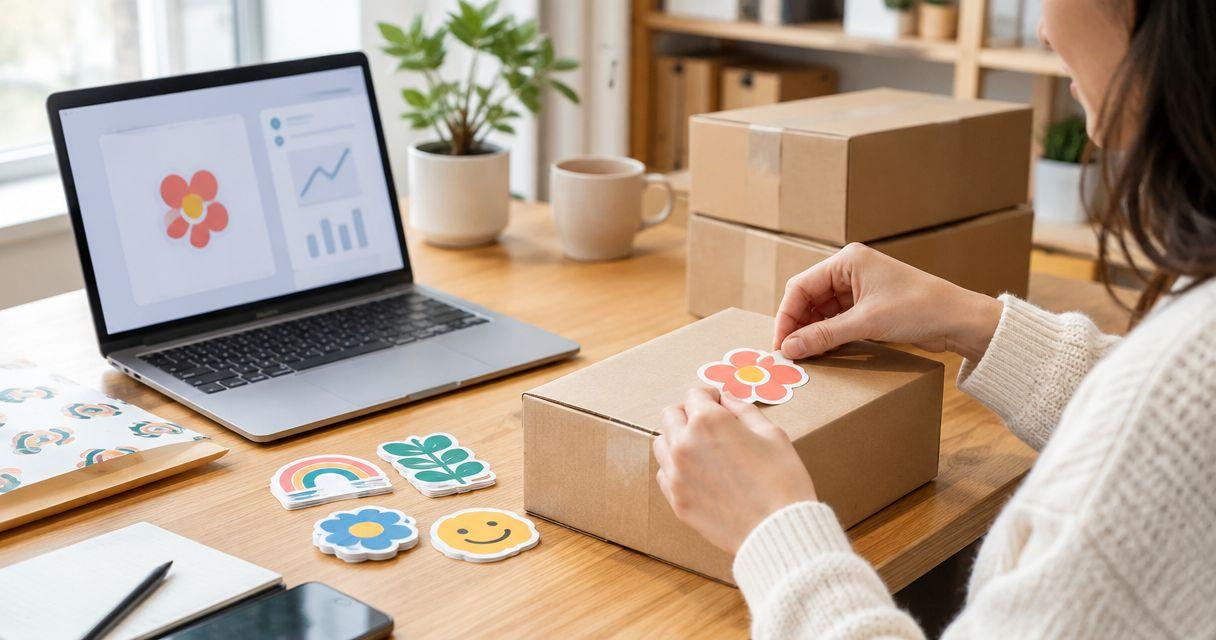
Instead of deciding which logo sticker to include while packing each Shopify order, set a sticker rule for each shipment type and prepare matching fulfillment batches. This guide covers custom stickers for Shopify orders as a bulk-printing and packing workflow—not an automatic connection that sends individual orders to a printer.
- Order custom stickers for Shopify orders in planned batches, then match sticker quantities to outgoing parcels.
- Vinylstatus serves small businesses ordering custom logo stickers from their own artwork.
- Approve artwork, size, and cut shape before scheduling printed stickers into your packing workflow.
- Keep packing slips and sticker instructions together; a printed slip does not confirm shipment.
Why this matters
A Shopify order and a shipping parcel are not always the same thing. Split shipments, combined orders, and replacement parcels change how many stickers your packing team needs.
Build your sticker quantity around the parcel that receives it, not an unqualified order total. That decision connects purchasing to actual packing work and prevents conflicting instructions at the bench.
Vinylstatus is an online print shop for small businesses ordering custom logo stickers from their own artwork. Treat the sticker order and the Shopify fulfillment process as separate jobs, joined by a written packing rule.
For your 2026 workflow, keep the first version simple: one approved logo design, a defined placement, and a clear rule for exceptions. Add design variants only when the packing team can distinguish them reliably.
Before you start
- Access and responsibility: Have access to Shopify Orders, a packing-slip printer, and someone authorized to approve sticker artwork. Confirm who can change packing instructions and who places replenishment orders.
- Artwork and materials: Gather your logo file, actual packaging, a ruler, and a paper mock-up. Decide whether the sticker decorates the package, closes tissue, or goes inside as a customer giveaway.
- The gotcha: Count parcels, not just orders. A split shipment can consume stickers twice, while a canceled order consumes none. This workflow does not establish a Shopify-to-printer integration or transfer customer data to a sticker supplier.
Sticker rules and artwork setup
Define the packing rule
- Write the sticker's job in plain language: package branding, tissue closure, or loose giveaway. Choose a primary job before selecting a shape.
- Define the receiving unit. Use a rule such as one logo sticker per outgoing parcel, rather than one sticker per product, unless product-level labeling is intentional.
- Record exceptions for replacement shipments, wholesale cartons, gift orders, and split shipments. State whether each exception receives the standard sticker, a different sticker, or none.
- Assign an owner to the rule. Packers need one approved instruction, not competing directions from purchasing, customer service, and marketing.
Expected result: A packer can decide what belongs in a parcel without asking why the customer ordered or interpreting a campaign calendar.
Choose the format by its job
Start with the application surface and the artwork. A shape that looks good on a screen can become awkward when it crosses a box seam or reduces a logo to unreadable detail.
| Format | Best for | Practical advantage | Constraint to check |
|---|---|---|---|
| Die-cut sticker | A standalone logo giveaway | The cut follows the artwork's silhouette | Narrow extensions need careful proof review |
| Circle sticker | A compact seal or round logo | A simple outline is easy to position | Wide wordmarks can leave unused space |
| Square sticker | A logo with a balanced, square layout | The outline suits square artwork | Corners need clear placement away from folds |
| QR-code sticker | A defined reorder or information destination | Connects a physical package to a chosen page | Requires scan testing, contrast, and a clear quiet zone |
These are application choices, not a quality ranking. A giveaway needs to look useful when removed from the package; a packaging sticker needs to fit its assigned surface without hiding required information.
Check size and approve artwork
- Measure the flat area where the sticker will sit. Leave room for folds, seams, shipping labels, and product information.
- Cut paper mock-ups at actual size. For reference, 1 inch equals 25.4 millimeters, 2 inches equals 50.8 millimeters, and 3 inches equals 76.2 millimeters. These are measurement conversions, not required sticker sizes.
- Place each mock-up on the real package. For a loose insert, check whether it fits the intended envelope or compartment without bending.
- Review the artwork at final dimensions. Inspect small lettering, logo spacing, the cut outline, and any background extending toward the edge.
- Approve the proof only after confirming the dimensions and intended application. Follow the supplier's artwork requirements rather than assuming a file extension guarantees print quality.
Expected result: The approved design fits the package and remains readable at its ordered size. Save the approved file and dimensions together so a reorder does not depend on memory.
Use the artwork-to-approval ordering guide when preparing the print order. Keep production after proof approval separate from shipping time when planning the date stickers must reach your packing bench.
Shopify batch and packing-document setup
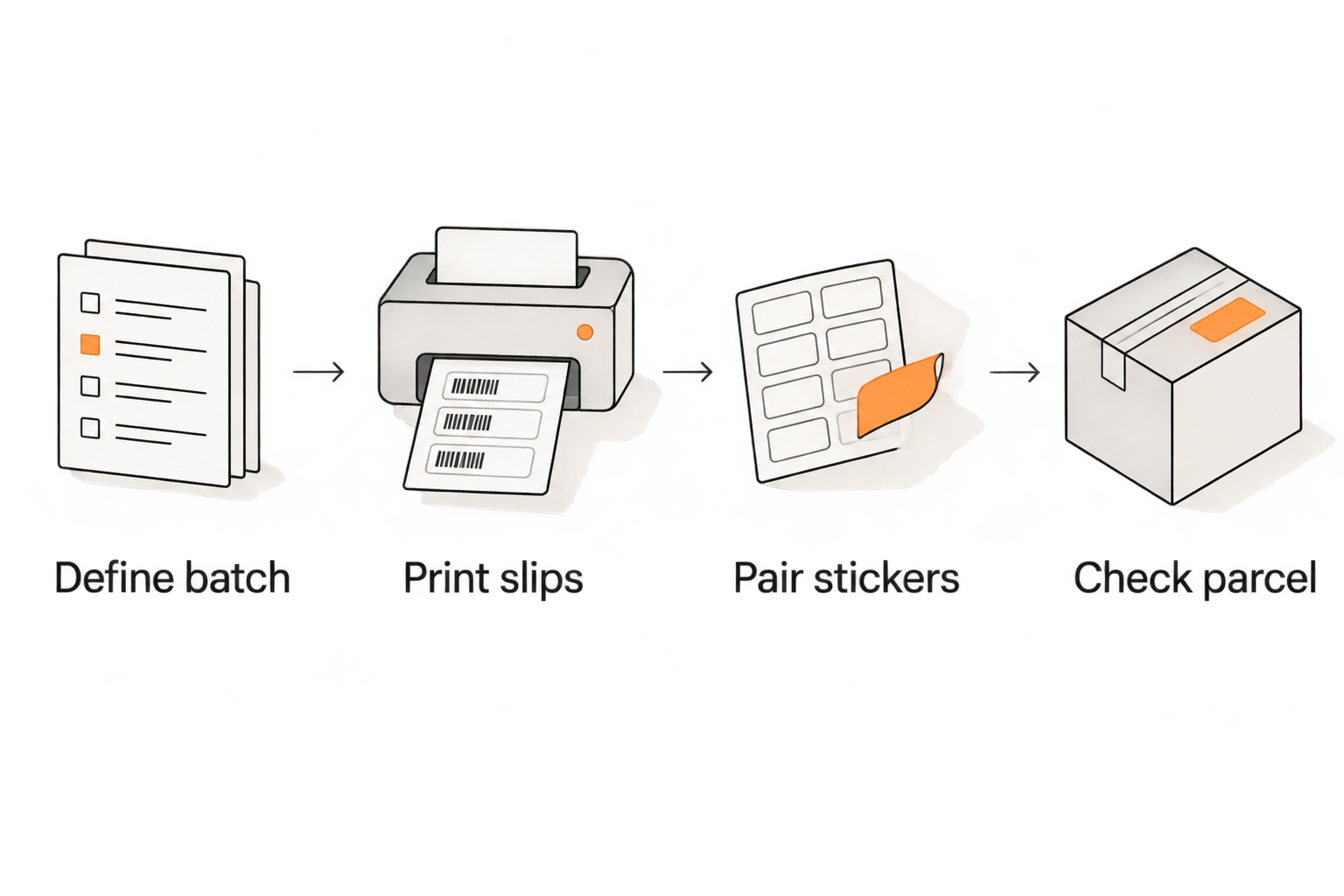
Assemble a defined batch
- Open Shopify Orders and identify the orders your team is preparing to ship. Follow your existing payment, hold, and fulfillment checks before including an order.
- Separate orders that need different packing treatment. Keep standard logo inserts apart from special packaging, alternate designs, and shipments with no sticker.
- Count the expected parcels within the batch. Inspect split shipments instead of assuming each order creates exactly one parcel.
- Write the sticker instruction on the batch's packing checklist. Include the design identifier, placement, and exception rule.
- Prepare only the sticker quantity assigned to that batch. Keep replacement stock separate so an unexplained shortage does not disappear into an open box.
Expected result: Each batch has a known shipment scope and a matching sticker instruction. The packing team can trace unused stickers back to a specific batch rather than the entire day's work.
Do not change payment or fulfillment status just to organize stickers. Packaging decisions belong in your packing process; shipment records must continue to describe what actually happened to the order.
Print and pair the documents
- Select the intended orders in Orders. Check the selected set before producing packing documents.
- Use Shopify's packing-slip printing action for that selection. Keep the resulting documents with the same batch rather than mixing them into a shared stack.
- Inspect a printed slip for legibility and complete content. Confirm the order identifier and item information are usable at the bench.
- Pair the packing documents with the sticker instruction. Keep customer-specific paperwork separate from generic printed stickers until packing begins.
- Place the batch in a designated work area. Do not introduce a second design halfway through without closing or clearly separating the first batch.
Expected result: Documents, products, and sticker instructions travel through packing together. Printing paperwork does not mark a parcel as packed, dispatched, or successfully delivered.
Use the same sequence for every 2026 fulfillment batch: define the shipment set, prepare its documents, then release its packing materials. Consistent sequencing matters more than creating extra administrative steps.
Packing checks and replenishment setup
Check the parcel before sealing
- Match the physical items to the packing document. Resolve product errors before adding packaging extras.
- Apply or insert the correct sticker according to the written rule. Keep it clear of address labels, barcodes, seams that must open, and required product information.
- Inspect an applied sticker for trapped folds, lifted edges, or an unsuitable surface. Test the intended application before adopting it across a full batch.
- Reconcile unused stickers when the batch closes. Record damaged pieces and changed shipments rather than treating every difference as a packing mistake.
- Complete shipment actions through your normal fulfillment process. A sticker count is a materials check, not proof that the correct products shipped.
Expected result: Every completed parcel receives the intended treatment, and discrepancies have an explanation before the next batch starts.
For a 2026 packing checklist, make the final check specific: correct design, correct placement, clear shipping label, and correct products. A vague instruction to make the parcel look good leaves too much room for interpretation.
Calculate replenishment from actual use
Base the next sticker order on planned eligible parcels plus a deliberate reserve, minus usable stock already on hand. Keep damaged stock and retired artwork out of the usable balance.
Set the reserve from your own replacement history and shipping needs. Do not add an arbitrary percentage simply because a larger order looks more efficient; unused seasonal artwork still occupies space and ties up purchasing funds.
Record when the proof was approved and when the shipment arrived. Those are different milestones. Your replenishment schedule needs to cover approval, production, transit, and receiving—not just the printing stage.
Variant: mixed-channel and seasonal packing batches
The same process works when Shopify orders share a packing bench with orders from other sales channels. Keep each channel's order identity and shipment records intact, then apply a common physical packing rule where appropriate.
For mixed-channel fulfillment, batch printing packing slips belongs alongside batch separation and document checks: a shared printer must not turn distinct shipment groups into one anonymous paperwork stack. Match each slip to its source order before pairing it with stickers or products.
For seasonal stickers, change the design assignment rather than rewriting the whole process. Define which parcels qualify, when the campaign begins, and what happens to unshipped orders when the campaign ends.
Keep your 2026 seasonal artwork separate from the evergreen logo design. A clearly named artwork file and a matching storage location make a campaign change easier to execute without mixing old and new materials.
The trade-off: Separate batches reduce design ambiguity but create more handling. Keep a single evergreen sticker when campaign-specific packaging does not justify the added sorting and leftover-stock risk.
Troubleshooting
Sticker usage exceeds the order count
Check split shipments, replacements, multiple stickers per parcel, and damaged pieces. Compare consumption with eligible parcels rather than the dashboard's order total.
If the rule is unclear, rewrite it before the next batch. Buying more stock does not fix an undefined receiving unit.
The sticker looks too small on the package
Compare the delivered dimensions with the approved proof and paper mock-up. A logo can be correctly printed yet visually weak on a much larger shipping box.
Recheck placement and artwork layout before changing dimensions. Enlarging the entire design is not always the right fix for small text or excessive empty space.
Packers use the wrong design
Separate stock physically and put the exact artwork identifier on the packing checklist. Remove retired designs from active packing stations.
Do not rely on similar file names or a verbal announcement. The instruction and the material must agree where the parcel is packed.
A packing slip is printed twice
Verify whether the duplicate represents a reprint or a separate shipment. Keep it out of the active packing stack until the order record confirms the required action.
Do not pack another parcel merely because another slip exists. Printing is a document event, not a new customer order.
Stickers run out before replenishment arrives
Check whether the reorder plan omitted proof approval, transit, or receiving time. Also compare planned demand with actual parcel consumption.
Update the stock trigger using your own records. Avoid promising a packaging extra that the fulfillment team cannot consistently include.
Customize your workflow
Once the standard batch works, add only the distinction that solves a real packing problem: a separate giveaway design, a wholesale packing rule, or a campaign-specific insert. Test the change on actual packaging before placing the full print order.
Vinylstatus custom logo stickers fit a bulk-ordering workflow; your Shopify order controls still need to govern picking and shipping. Keep the supplier's artwork approval separate from your internal approval of the packing process.
For your next 2026 reorder, retain the approved artwork, dimensions, intended surface, and consumption record together. That creates a repeatable purchasing specification without assuming that every future campaign needs a new format.
FAQ
How do I add custom stickers to Shopify orders?
Order printed stickers separately, define which parcels receive them, and add that instruction to your packing workflow. Prepare stickers alongside each shipment batch and check placement before sealing.
Does this workflow automatically send Shopify orders to Vinylstatus?
No. This workflow joins Shopify order handling with separately ordered printed stickers through packing instructions; it does not establish an automated integration or customer-data transfer.
Should I count stickers by order or by shipment?
Count stickers by the unit that actually receives them, usually the outgoing parcel. Split shipments, combined orders, and replacements can make parcel demand differ from order totals.
What size should logo stickers be for shipping boxes?
Choose the size from the available flat area and the logo’s readability at final dimensions. Test a paper mock-up on the actual box before approving the artwork.
Can I use the same sticker for packaging and giveaways?
Yes, if the design and dimensions work for both uses. Record whether the sticker is applied to the package or included loose, because that choice changes packing instructions and consumption.
When should I reorder stickers for my Shopify store?
Reorder when usable stock no longer covers expected parcel demand through approval, production, transit, and receiving, plus your chosen reserve. Use your own consumption and delivery records rather than an assumed universal lead time.
One last thing
A sticker printed correctly can still be packed incorrectly. Before your next bulk order, assemble a complete parcel with the actual products, paperwork, and sticker mock-up. That physical check tests the whole workflow, not just the artwork.
Related guides
- Size a custom logo sticker for your product
- Plan a bulk custom sticker order for your small business
- Plan custom stickers for seasonal and holiday packaging